
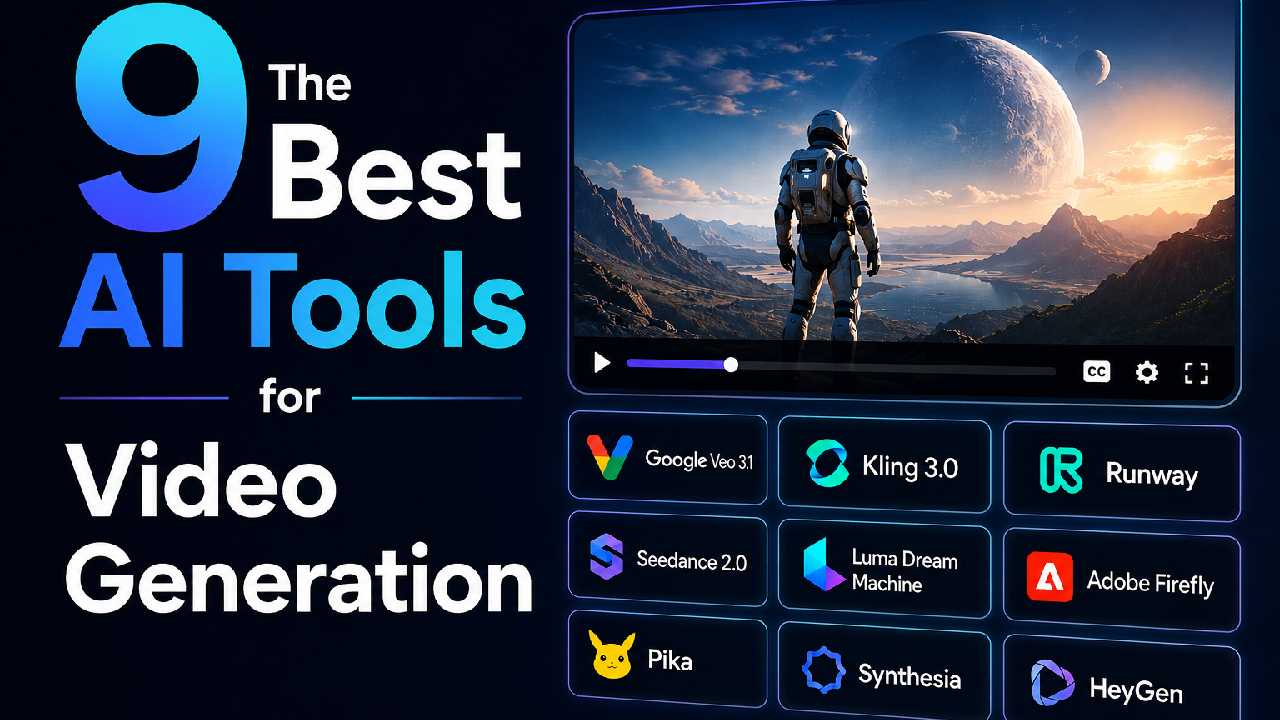
If you chose from the best AI tools for video generation six months ago, your shortlist is already out of date. The single most-recommended “narrative” model of early 2026, OpenAI’s Sora, is being switched off: the web and app shut down on April 26, 2026, and the API follows on September 24, 2026. Anyone who built a workflow around it is now migrating.
So this guide does two things. It reviews the nine tools actually worth your money right now (each with its real features, pricing, and honest pros and cons), and tells you which one fits your specific job, whether that’s cinematic shots, realistic humans, talking-head training video, or fast social clips. Every price below was checked against the vendor’s official page in June 2026.
Quick comparison
| # | Tool | Best for | Starting price | Free tier |
| 1 | Google Veo 3.1 | All-round quality + native audio | $19.99/mo (AI Pro) | Yes (AI Plus credits) |
| 2 | Kling 3.0 | Realistic humans, best value | $6.99/mo intro | Yes (66 credits/day) |
| 3 | Runway | Creative & camera control | $15/mo ($12 annual) | Yes (125 credits) |
| 4 | Seedance 2.0 | Image-to-video & lip-sync | ~$0.05–$0.40/sec (API) | Via aggregators |
| 5 | Luma Dream Machine | Fast iteration | $9.99/mo (Lite) | Yes (draft mode) |
| 6 | Adobe Firefly | Commercially safe output | $9.99/mo (Standard) | Yes (~25 credits) |
| 7 | Pika | Playful social effects | $10/mo ($8 annual) | Yes (80 credits/mo) |
| 8 | Synthesia | Avatar training video | $29/mo (~$18 annual) | Yes (3 min/mo) |
| 9 | HeyGen | Personalized, translated avatars | $29/mo ($24 annual) | Yes (3 videos/mo) |
Pricing changes constantly in this category. Google restructured its tiers at I/O 2026, HeyGen retired its Team plan in January 2026, and Kling’s rates shift between intro and renewal. Confirm the live price before you buy.
1. Google Veo 3.1: best all-rounder
Key features
- Text-to-video and image-to-video, with native synced audio
- Up to 4K output through the Gemini API
- Strongest prompt adherence of any current model
- Scene extension and reference-image (“ingredients”) workflows
Pros
- Results land close to your prompt on the first or second try
- Native audio removes a whole separate production step
- High visual fidelity with cinematic motion
Cons
- No standalone Veo subscription; it’s bundled into Google AI plans.
- Flow’s credit math is opaque; Pro’s 1,000 credits vanish in roughly ten quality clips
- 720p default unless you upgrade
Pricing
- Google AI Plus: $4.99/mo (200 Flow credits)
- Google AI Pro: $19.99/mo (1,000 Flow credits)
- Google AI Ultra: $99.99–$199.99/mo (10,000–25,000 credits)
Veo is the safe default if you want the best quality with the least effort. But if you generate people specifically, the next tool does it better for less.
2. Kling 3.0: best value and most realistic human motion
Kling consistently produces the most natural human movement of any model: the walking, pausing, and turning that trips up its rivals. It does it at the lowest premium price. Version 3.0 added native 4K and multi-shot storyboards with audio synced across cuts.
Key features
- Best-in-class human motion and physics
- Native 4K, clips up to two minutes
- Multi-shot storyboard mode with synced audio
- Text-to-video and image-to-video with motion control
Pros
- The most lifelike characters and movement on the market
- Cheapest premium option at roughly $0.08–$0.11 per second via API
- True 4K output
Cons
- Queue waits on lower tiers, especially for detailed scenes
- Turning on native audio multiplies credit cost
- A failed or stuck-at-99% generation is gone with no refund
Pricing
- Free: 66 credits/day (watermarked, non-commercial)
- Standard: $6.99/mo intro (≈$8.80 renewal)
- Pro: $25.99/mo
- Premier: $64.99/mo
- Ultra: $127.99–$180/mo
If your budget is tight but your standards aren’t, start here. For precise creative direction, though, Runway gives you controls Kling doesn’t.
3. Runway: best for creative and camera control
Runway is the filmmaker’s pick. Its Gen-4.5 model understands film language like camera moves and timed beats, but the real advantage is the toolkit around it, which lets you direct and edit rather than just generate and hope.
Key features
- Multi motion brush and directional camera controls
- Aleph model re-edits existing footage from a text prompt (change lighting, swap objects)
- Act-Two transfers a real actor’s performance onto an AI character
- Text-to-video, image-to-video, and lip-sync on Pro
Pros
- The deepest creative control of any tool here
- Footage re-editing and performance transfer are genuinely unique
- Streamlined, capable interface once you learn it
Cons
- Steep learning curve; overwhelming for beginners
- Credits don’t roll over, and users report billing and cancellation friction
- Raw output quality has slipped behind Veo and Kling
Pricing
- Free: 125 one-time credits
- Standard: $15/mo ($12 billed annually)
- Pro: $35/mo ($28 billed annually)
- Top tier: ~$95/mo (currently being restructured into a “Max” tier)
- Enterprise: custom
Runway rewards the time you put into it. If your job is animating a single image instead of building shots from scratch, Seedance is the specialist.
4. Seedance 2.0: best for image-to-video and lip-sync
ByteDance’s Seedance 2.0, released in February 2026, climbed to the top of the Artificial Analysis leaderboard for image-to-video. It’s the model creators now reach for when they want to animate a still or need accurate lip-sync.
Key features
- Leading image-to-video quality
- Phoneme-level lip-sync
- Up to 4K output with strong motion handling
- Available through fal.ai, Replicate, and BytePlus
Pros
- The best tool for bringing a reference image to life
- Lip-sync accuracy beats general-purpose models
- Often the closest practical replacement for Sora’s image-to-video work
Cons
- No polished consumer app; you work through API aggregators
- Per-second metering and setup overhead instead of a simple subscription
- Less suited to pure text-to-scene generation
Pricing
- API/aggregator only: roughly $0.05–$0.40 per second depending on platform and resolution
- No consumer subscription of its own
Seedance is a specialist, not an all-rounder. When speed and quick iteration matter more than precision, Luma is the faster path.
5. Luma Dream Machine: best for fast iteration
Luma’s Dream Machine, running its Ray3 model, is built for speed. It generates cinematic clips fast and includes a draft mode that halves credit use while you experiment, which makes it the most enjoyable tool here for brainstorming and rapid iteration.
Key features
- Extremely fast generation
- Draft mode that cuts credit cost while testing
- Keyframe support to lock a start and end image
- Text-to-video and image-to-video, with HDR on Plus
Pros
- The quickest iteration loop on this list
- Cheap to experiment thanks to draft mode
- Genuinely cinematic results
Cons
- Monthly generation cap rather than daily credits
- The cheap Lite plan blocks commercial use
- Consistency is a gamble; expect a high retry rate
Pricing
- Free: draft mode (watermarked, non-commercial)
- Lite: $9.99/mo
- Plus: $29.99/mo (HDR and commercial rights)
- Unlimited: $94.99/mo
Luma is about volume and speed. When the priority shifts to legally safe output you can hand to a client, Adobe Firefly is the answer.
6. Adobe Firefly: best for commercially safe output
Adobe Firefly is the tool for client work where provenance matters. Adobe trains its Firefly models on licensed, openly licensed, and public-domain material rather than scraped web data, and backs the output with contractual IP indemnification, meaning Adobe may assume legal defense for covered claims (with the right paid entitlement).
Key features
- Text-to-video and image-to-video, 1080p
- IP indemnification on covered, entitled content
- Direct Premiere Pro integration
- Acts as a hub for partner models, including Veo, in one app
Pros
- The safest choice for legally sensitive, client-facing work
- Familiar and frictionless if you already use Premiere
- One subscription, multiple models
Cons
- Output quality trails Veo, Kling, and Runway
- 1080p video is credit-hungry; a single 5-second clip can eat ~500 credits
- Indemnification depends on the correct entitlement; read the fine print
Pricing
- Free: ~25 credits/mo
- Standard: $9.99/mo (2,000 credits, ~20 short clips)
- Pro: $19.99/mo (4,000 credits)
- Premium: $199.99/mo (50,000 credits)
Firefly trades a little polish for peace of mind. If your output is destined for social feeds rather than client decks, Pika is built for that lane.
7. Pika: best for playful social effects
Pika leans into creative manipulation. Its Pikaframes, Pikaswaps, and similar features are made for the remix-heavy, viral-effect style of short-form video, and it’s the fastest tool here to a fun, shareable result.
Key features
- Signature effects: Pikaframes, Pikaswaps, Pikadditions
- Text-to-video and image-to-video, 1080p
- Quick transforms designed for social formats
Pros
- Fastest route to a fun, novel clip
- Effects you won’t find on the more “serious” tools
- Affordable entry pricing
Cons
- Loose prompt adherence, so you trade precision for play
- Weak consistency on complex or realistic scenes
- Not suited to professional or cinematic work
Pricing
- Free: 80 credits/mo
- Standard: $10/mo ($8 annual)
- Pro: $35/mo ($28 annual)
- Fancy: $95/mo ($76 annual)
Pika is for personality, not precision. When you need a person on screen explaining something, avatar tools take over, starting with Synthesia.
8. Synthesia: best for avatar and training video
When you need someone on screen presenting and nobody wants to be on camera, Synthesia is the established leader. It turns a script into a polished avatar-led video, which makes it the default for training, onboarding, and corporate communication.
Key features
- 125+ avatars (180+ on Creator), plus custom avatars
- 120+ languages with script-to-video editing
- Screen recording and template library
- 4K output on higher tiers
Pros
- The smoothest avatar workflow; no learning curve
- Excellent multilingual support
- Polished, professional output fast
Cons
- Starter caps you at 10 minutes/month, pushing serious users to the $89 Creator plan
- Avatars still read as not-quite-human on a large screen
- Limited control over avatar expression and appearance
Pricing
- Free: 3 min/mo (watermarked)
- Starter: $29/mo (~$18/mo billed annually)
- Creator: $89/mo
- Enterprise: custom
Synthesia is the corporate standard. HeyGen covers the same ground but pushes further into cloning, translation, and interactivity.
9. HeyGen: best for personalized and translated avatars
HeyGen overlaps with Synthesia but specializes in two areas: voice-cloned custom avatars and real-time interactivity. Its LiveAvatar feature creates interactive avatars you can embed on a website, and its translation tools localize a single video into many languages.
Key features
- Voice-cloned custom avatars (Avatar IV/V engines)
- Translation into 175+ languages
- LiveAvatar for real-time interactive video
- 4K on Business; monthly credits roll over for a month
Pros
- Strong voice cloning and translation
- Interactive avatars are genuinely ahead of rivals
- Quick setup, and unused monthly credits roll over for a month
Cons
- Premium engines burn credits fast. Avatar IV/V run 20 credits/min, so Creator’s 600 credits cover only ~30 minutes of premium video
- Free plan is limited to 3 videos/month
- Interactive features still warrant prototyping before high-stakes use
Pricing
- Free: 3 videos/mo
- Creator: $29/mo ($24 annual)
- Pro: $49/mo
- Business: $149/mo ($124 annual) + $20/seat
- Enterprise: custom
Those are the nine tools worth paying for. A quick word on a category many roundups miss, then the practical guidance.
Don’t forget repurposing tools
Not all “video generation” means generating from scratch. If you already produce long content (webinars, podcasts, long YouTube videos), repurposing tools save more hours than any generative model. OpusClip (from $15/mo) chops long video into ranked short clips with captions, Descript (from $16/user/mo) lets you edit video by editing its transcript like a document, and invideo AI (from $17/mo) builds a faceless social video from a single prompt. For a content channel, these often matter more than the flashier generators above.
How to actually choose
The comparison table should leave you with two or three options. The fastest way to pick the winner is to run the same prompt through each one and compare the results side by side.
So we built a test prompt that pushes on the exact things AI video tools struggle with: human movement, fine detail, lighting, and prompt accuracy. Copy it, paste it into each tool you’re considering, and the differences usually show up in a single generation.
The master test prompt (copy this):
A woman in a flowing red coat walks slowly toward the camera down a rain-soaked city street at night. Neon shop signs reflect in the wet pavement. She stops, turns her head to look over her left shoulder, and gives a small knowing smile. Cinematic, shallow depth of field, gentle camera push-in, realistic skin and hair, soft rain falling throughout.This one prompt tests everything at once: walking (where most tools fail), a deliberate head turn and facial expression (close-up weak points), reflections and rain that must stay consistent as the camera moves, and specific details (red coat, left shoulder, the smile) that show whether the tool actually follows instructions.
Settings to use for a fair test:
- Aspect ratio: 16:9 for landscape, or 9:16 if you’re testing for Reels and TikTok
- Video duration: 8 seconds, long enough to expose motion and consistency problems
- Frame rate: 24 fps for a natural, cinematic look
- Output resolution: the highest the free tier offers, so close-up flaws have nowhere to hide
Keep these the same on every tool, so you’re comparing the models fairly and not the settings.
Make sure you’re in plain text-to-video mode. Some tools default to an avatar or lip-sync mode that needs a face image and turns your prompt into a talking-head voiceover instead of a scene. Runway, for example, has both a Characters mode (which needs an uploaded face) and a Gen-4.5 text-to-video mode. For this test you want the plain text-to-video option, with no face or script attached.
How to judge what comes back:
Score the result you could actually publish, not the single best-looking frame. Ask three things: Did she walk naturally, or slide in place? Did the rain and reflections hold steady during the camera move? Did the tool get the details right, like the red coat, the turn, and the smile? The tool that needs the fewest retries to get a usable clip is your answer.
One last thing to know before you pay. Most of these are models (Veo, Kling, Seedance) that you use through platforms (like Firefly or Synthesia). The same model can show up in several apps at different prices, so sometimes the app you’re comparing is actually running the very model you’re comparing it to.
Limitations to expect from every tool
No vendor talks about these, so here they are. Whichever tool you pick, the same problems keep showing up in testing.
- Movement still looks off. When a character walks or runs, they often seem to stay in one spot while the background slides past. Kling handles this best; most tools struggle with it.
- Camera moves lose detail. Something on screen at the start, like falling leaves or a neon reflection, can disappear the moment the camera moves in closer.
- Close-ups break down. Hands, eyes, and mouths are the first things to look wrong when the camera gets near a face.
- Tools don’t always follow the prompt. Specific instructions get dropped or changed. Ask for “emerald green” and you might get turquoise.
- Every failed try still costs money. With credit or per-second billing, a clip you throw away is a clip you paid for. Ten bad attempts at a 5-second video can quietly cost $20 or more.
- You may not own the result. Free plans usually block commercial use and add a watermark. One popular model, MiniMax’s Hailuo, was even sued by major studios over copyright. Always check the terms before using a clip for a client.
None of this means you should avoid AI video. It just means you should expect to do a few retries, keep your clips short, and start from an image when you need more control.
A note on Sora, and avoiding lock-in
For most of early 2026, “best for narrative storytelling” meant OpenAI’s Sora. Not anymore. OpenAI confirmed the Sora app shut down on April 26, 2026, and the Sora 2 API will be removed on September 24, 2026, with no named replacement. For narrative work, Veo 3.1 is the closest practical successor; for image-to-video, Seedance 2.0 has taken over.
The lesson is bigger than one model: this category punishes single-vendor dependence. A tool that tops the charts in January can be deprecated by April. So build around the job you need done, stay flexible, and treat any one model as replaceable rather than betting your whole workflow on it.
The bottom line
There’s no single best AI tool for video generation. There’s a best tool for your job.
Pick your two or three likeliest options, run the master prompt above through their free tiers, and let the results decide. And because this field moves fast, re-check your shortlist every few months, because the leader today may not be the leader by your next project.
If you found this useful, the TheDiscoverAI AI video tools hub tracks each of these tools as the field changes, and we’d genuinely like to hear which one fit your workflow in the comments.
Frequently asked questions
What is the best AI tool for video generation right now?
There’s no single best tool; it depends on the job. Google Veo 3.1 is the safest all-rounder for high-quality, audio-synced clips, Kling 3.0 is the best value for realistic human motion, and Runway is best when you need precise creative control. Match the tool to the output you need rather than to a leaderboard ranking.
Are there genuinely free AI tools for video generation?
Yes. Most major tools offer a free tier, including Luma Dream Machine, Pika, Kling, HeyGen, and Adobe Firefly. The catch is that free plans almost always add a watermark, cap resolution or length, and block commercial use, so they’re best for testing rather than publishing client work.
Is Sora still a good choice for AI video?
No. OpenAI discontinued the Sora web and app on April 26, 2026, and the Sora 2 API will be removed on September 24, 2026, with no named replacement. For narrative work, Veo 3.1 is the closest practical alternative; for image-to-video, Seedance 2.0 has become the leading option.
Veo 3.1 vs Kling 3.0: which should I pick?
Pick Veo 3.1 when audio quality and prompt accuracy matter most and you can absorb the higher cost; pick Kling 3.0 when you want strong realism and many iterations on a tight budget. Veo leads on native audio and prompt adherence, while Kling runs at roughly $0.08–$0.11 per second and is rated best for natural human movement.
Can I use AI-generated videos commercially?
Usually yes on paid plans, but the details vary by provider and you must verify the current terms. Tools like Luma, Pika, and Kling allow commercial use on paid tiers, but free tiers typically don’t, and Adobe Firefly is the standout for legally sensitive work because it offers IP indemnification.
Does AI video generation work for talking-head and training videos?
Yes, and it’s one of the most mature use cases. Synthesia and HeyGen specialize in avatar-led videos with multi-language support and script-to-video editing. The main limitation is that avatars can still look slightly unnatural on large screens, so they suit training and internal comms better than high-stakes public-facing content.
How much should I budget for AI video generation per month?
Most creators land between $10 and $35/month on a subscription, with budget-friendly entry plans from Kling, Pika, Luma, and Adobe Firefly around $10/month. Heavy or agency-level use through Google AI Ultra or unlimited plans runs from roughly $95 to $200/month, and per-second API billing can cost more once you account for failed generations.